Author: Jürgen Kreitler

  • How To DIY Site Search Analytics Using Athena – Part 3

    How To DIY Site Search Analytics Using Athena – Part 3

    How To DIY Site Search Analytics Using Athena
    – Part 3

    This is the final post in a series of three. If you missed Part 1 and Part 2, please head over and read them first as this post will build on the work from our sample analytics application.

    Remember: we are building an Ecommerce Site Search Analytics tool from scratch. The goal is to allow for you to more accurately gather detailed information from your site search tool in order to optimize your business for more online revenue.

    So let’s get right to it and discuss how to add the following features to our application:

    1. How-To generate random sample data to easily create queries spanning multiple days.

    2. How-To create Athena queries to fetch the E-Commerce KPIs: CTR and CR.

    3. How-To create an HTML page to visualize the KPIs in a line chart.

    1. How-To generate random sample data

    So far, our application can process a single CSV file, which it then converts into an Apache Parquet file. This file is then uploaded to AWS S3 under the partition key of the last modification date of that file.

    Now, we will create a method to generate random data across multiple days. This enables us to write Athena queries that span a time range. (E.g., get the CTR of the last 7 days.) First, we need to make some necessary changes to the FileController and FileService classes even though this clearly violates the Single-Responsibility-Principle. However, for the purposes of this post, it will serve our needs.

    Open up the FileController and add the following method:

    				
    					@GetMapping("/randomize/{numDays}")
    @ResponseBody
    public List<URL> randomize(@PathVariable int numDays) {
        return fileService.createRandomData(numDays);
    }


    The endpoint expects a path variable containing the number of days the random data should be created. This variable is subsequently passed to a new method in the FileService which contains the actual logic:

    				
    					public List<URL> createRandomData(int numberOfDays) {
        List<String> queries = new ArrayList<>(List.of("dress", "shoes", "jeans", "dress red", "jacket", "shoes women", "t-shirt black", "tshirt", "shirt", "hoodie"));
        String rawSchema = getSchemaFromRootDir();
        MessageType schema = MessageTypeParser.parseMessageType(rawSchema);
        LocalDate now = LocalDate.now();
        Random random = new Random();
        AmazonS3 s3 = AmazonS3ClientBuilder.standard().build();
        List<URL> uploadUrls = new ArrayList<>(numberOfDays);
        for (int i = 0; i < numberOfDays; i++) {
            Collections.shuffle(queries);
            Path tempFile = createTempDir().resolve("analytics" + String.valueOf(i) + ".parquet");
            org.apache.hadoop.fs.Path path = new org.apache.hadoop.fs.Path(tempFile.toUri());
            try (
                    CsvParquetWriter writer = new CsvParquetWriter(path, schema, false);
            ) {
                for (String query : queries) {
                    Integer searches = random.nextInt(100);
                    Double ctrBound = 0.3 * searches;
                    Integer clicks = ctrBound.intValue() == 0 ? 0 : random.nextInt(ctrBound.intValue());
                    Double transactionsBound = 0.1 * searches;
                    Integer transactions = transactionsBound.intValue() == 0 ? 0 : random.nextInt(transactionsBound.intValue());
                    List<String> values = List.of(query, searches.toString(), clicks.toString(), transactions.toString());
                    writer.write(values);
                }
            }
            catch (IOException e) {
                throw new StorageFileNotFoundException("Could not create random data", e);
            }
            String bucket = String.format("search-insights-demo/dt=%s", now.minusDays(i).toString());
            s3.putObject(bucket, "analytics.parquet", tempFile.toFile());
            uploadUrls.add(s3.getUrl(bucket, "analytics.parquet"));
        }
        context.execute(QUERY_REPAIR_TABLE);
        return uploadUrls;
    }


    					# Create random data for the last seven days
    curl -s localhost:8080/csv/randomize/7
    # The response returns the S3 URLs for every generated Parquet file
    ["https://s3.eu-central-1.amazonaws.com/search-insights-demo/dt%3D2021-10-11/analytics.parquet","https://s3.eu-central-1.amazonaws.com/search-insights-demo/dt%3D2021-10-10/analytics.parquet","https://s3.eu-central-1.amazonaws.com/search-insights-demo/dt%3D2021-10-09/analytics.parquet","https://s3.eu-central-1.amazonaws.com/search-insights-demo/dt%3D2021-10-08/analytics.parquet","https://s3.eu-central-1.amazonaws.com/search-insights-demo/dt%3D2021-10-07/analytics.parquet","https://s3.eu-central-1.amazonaws.com/search-insights-demo/dt%3D2021-10-06/analytics.parquet","https://s3.eu-central-1.amazonaws.com/search-insights-demo/dt%3D2021-10-05/analytics.parquet"]


    Now that our files are uploaded to S3 let’s check if Athena partitioned the data correctly by executing the count request.

    				
    					curl -s localhost:8080/insights/count
    # The response should look like
    Executing query     : select count(*) from "ANALYTICS"
    Fetched result      : +-----+
                        : |count|
                        : +-----+
                        : |  73|
                        : +-----+                                  
    Fetched row(s)      : 1  


    2. How-To create Athena queries to fetch the E-Commerce KPIs: CTR and CR

    The Click-Through-Rate (CTR) and Conversion-Rate (CR) are among the most frequently used KPIs when it comes to measuring the performance of an E-Commerce-Search.

    Most search vendors claim that their solution boosts your Conversion-Rate by X %

    Often the promise is made to increase the CR by upwards of 30%. More than anything, this is clever marketing as the potential increase goes hand in hand with increased sales. However, as highlighted in the blog series by Andreas Wagner it’s necessary to not only rely on these KPIs to optimize search. Nevertheless, they are part of the big picture, so let’s talk about retrieving these KPIs. Technically, if you already have the correct data, the calculation is pretty straightforward.

    A Definition of the KPIs CR and CTR:

    • CR or Conversion Rate: Number of transactions / Number of searches
    • CTR or Click Through Rate: Number of clicks / Number of searches

    Now that we know what these KPIs are and how to calculate them, we need to add the new REST endpoints to the AthenaQueryController

    				
    					@GetMapping("/ctr")
    public ResponseEntity<ChartData> getCTR(@Valid AnalyticsRequest request) {
        return ResponseEntity.ok(queryService.getCTR(request));
    }
    @GetMapping("/cr")
    public ResponseEntity<ChartData> getCR(@Valid AnalyticsRequest request) {
        return ResponseEntity.ok(queryService.getCR(request));
    }


    The parameter of both methods has two unique features:

    1. @Valid This annotation is part of the Java Bean Validation specification. It ensures that the fields of the subsequent object (AnalyticsRequest) are validated using their internal annotations. This ensures that inputs made in most cases by a user via a GUI meet specific criteria. In our case, we want the user to enter the period for calculating the CR/CTR, and we want to make sure that the start date is before the end date. We achieve this with another annotation @AssertTrue in the AnalyticsRequest class:
    				
    					@Data
    @AllArgsConstructor
    @NoArgsConstructor
    public class AnalyticsRequest {
        @DateTimeFormat(iso = ISO.DATE)
        private LocalDate   from;
        @DateTimeFormat(iso = ISO.DATE)
        private LocalDate   to;
        @AssertTrue
        public boolean isValidDateRange() {
            return from != null && to != null && !to.isBefore(from);
        }
    }


    The incoming REST request will automatically be validated for us. Additionally, our service method will only be called if the isValidDateRange method returns true otherwise, a validation error response will be sent to the client. If you followed the second part of this article and tried to add those annotations, you will get an error due to missing required dependencies. So let’s go ahead and add them to the pom.xml

    				
    					<dependency>
        <groupId>org.springframework.boot</groupId>
        <artifactId>spring-boot-starter-validation</artifactId>
    </dependency>


    This Spring starter pulls in hibernate-validator, the reference implementation of the validation API. Additionally, jakarta.el, an implementation of the Expression Language specification, which supports variable interpolation as part of the validation API, is also loaded.

    1. AnalyticsRequest is not preceded by any @RequestParam, @RequestBody or @PathVariable annotation. As a result, Spring tries to map each request parameter to a field in the specified DTO – Data Transfer Object. In order for this to work, the parameter and field name must be identical.

    In our case, this means the request must look like this: baseUrl/cr?from=yyyy-MM-dd&to=yyyy-MM-dd

    That’s it for the controller.

    How-To Make The Necessary Changes to the AthenaQueryService

    Let’s dig into the details of the changes in the AthenaQueryService using the example of CR

    				
    					public ChartData getCR(AnalyticsRequest request) {
        Field<BigDecimal> crField = saveDiv(sum(ANALYTICS.TRANSACTIONS), sum(ANALYTICS.SEARCHES), new BigDecimal(0));
        return getKPI(request, crField);
    }


    Very straightforward with the help of two auxiliary methods – where the real magic is at. So let’s examine those auxiliary methods in more detail now.

    We begin with saveDiv

    				
    					private Field<BigDecimal> saveDiv(AggregateFunction<BigDecimal> dividend, AggregateFunction<BigDecimal> divisor, BigDecimal defaultValue) {
            return coalesce(dividend.cast(DECIMAL.precision(18, 3)).div(nullif(divisor, new BigDecimal(0))), defaultValue);
        }


    Here we use several functions of the JOOQ DSL to protect ourselves from division errors. The most infamous, known by every developer, is division by 0. You see, in practice, there is hardly a webshop that tracks all data correctly. As a result, these protective mechanisms are of utmost importance for volatile data such as E-Commerce search tracking.

    1. coalesce: returns the first value of the list that is non-null.
    2. nullif: returns null if both expressions are equal otherwise, it returns the first expression.
    3. div divides the first value by the second.

    The second helper method getKPI creates the actual Athena query and extracts it. This allows the query to be reused when calculating the CTR, thanks to JOOQ and its Field abstraction.

    				
    					private ChartData getKPI(AnalyticsRequest request, Field<BigDecimal> field) {
        ChartDataBuilder chartDataBuilder = ChartData.builder();
        context.select(ANALYTICS.DT, field)
                .from(ANALYTICS)
                .where(partitionedBetween(request))
                .groupBy(ANALYTICS.DT)
                .orderBy(ANALYTICS.DT.desc())
                .fetch()
                .forEach(rs -> {
                    try {
                        chartDataBuilder.label(LocalDate.parse(rs.get(0, String.class)).toString());
                        chartDataBuilder.data(rs.getValue(1, Double.class) * 100);
                    }
                    catch (DataTypeException | IllegalArgumentException e) {
                        throw new IllegalArgumentException(e);
                    }
                });
        return chartDataBuilder.build();
    }


    The JOOQ DSL should be very easy to read for anyone who understands SQL syntax. First, we select the date, and our aggregation (CR or CTR), grouped and sorted by date. A slight peculiarity is hidden in the where clause where another auxiliary method is used.

    				
    					private Condition partitionedBetween(AnalyticsRequest request) {
        Condition condition = DSL.trueCondition();
        if (request.getFrom() != null) {
            condition = condition.and(ANALYTICS.DT.greaterOrEqual(request.getFrom().toString()));
        }
        if (request.getTo() != null) {
            condition = condition.and(ANALYTICS.DT.lessOrEqual(request.getTo().toString()));
        }
        return condition;
    }


    Here we restrict the result based on the start and end date of our DTO. With the help of the JOOQ DSL trueCondition, we can ensure that our method always returns a Condition object. Even if we do not have a start or end date in our DTO object. This is excluded by the bean validation, but it is common practice to take protective measures in the service class and not rely solely on functions outside of it. In the last part of the method, each data record from the database is converted into the response format using a for-loop.

    Let’s complete the AthenaQueryService by adding the missing CTR calculation.

    				
    					public ChartData getCTR(AnalyticsRequest request) {
            Field<BigDecimal> ctrField = saveDiv(sum(ANALYTICS.CLICKS), sum(ANALYTICS.SEARCHES), new BigDecimal(0));
            return getKPI(request, ctrField);
        }


    That’s it!

    We should now be able to start the application and call our new endpoints.

    				
    					# GET the CR. Please adjust from and to accordingly
    curl -s "localhost:8080/insights/cr?from=2021-10-04&to=2021-10-11"
    # GET the CTR. Please adjust from and to accordingly
    curl -s "localhost:8080/insights/ctr?from=2021-10-04&to=2021-10-11"


    However, instead of the expected response, we get an Internal Server Error. Looking at the Stacktrace you should see:

    				
    					org.jooq.exception.DataAccessException: SQL [select `ANALYTICS`.`DT`, coalesce((cast(sum(`ANALYTICS`.`TRANSACTIONS`) as decimal(18, 3)) / nullif(sum(`ANALYTICS`.`SEARCHES`), ?)), ?) from `ANALYTICS` where (true and `ANALYTICS`.`DT` >= ? and `ANALYTICS`.`DT` <= ?) group by `ANALYTICS`.`DT` order by `ANALYTICS`.`DT` desc]; [Simba][AthenaJDBC](100071) An error has been thrown from the AWS Athena client. line 1:23: backquoted identifiers are not supported; use double quotes to quote identifiers


    So how do we tell JOOQ to use double quotes instead of backquotes for identifiers? In the world of Spring, this is done mainly by declaring a bean, so here too. Open the SearchInsightsDemoApplication class and add the following:

    				
    					@Bean
    Settings athenaSettings() {
        return new Settings().withRenderQuotedNames(RenderQuotedNames.NEVER);
    }


    If you try the request again, you will fail once again! This time with:

    				
    					Caused by: java.sql.SQLException: [Simba][AthenaJDBC](100071) An error has been thrown from the AWS Athena client. SYNTAX_ERROR: line 1:1: Incorrect number of parameters: expected 4 but found 0


    This is a tricky one as it’s not immediately clear what’s going wrong here. However, after spending a decent amount of time scanning the Athena and JOOQ documentation, I found that Athenas engine in version 1 and its corresponding JDBC driver do not support Prepared statements.

    This behavior changed in version 2 of the Engine as the Docs claim. But I haven’t tested it so far … The fix in our case is to add another JOOQ configuration setting withStatementType. This is how our final bean definition looks:

    				
    					@Bean
    Settings athenaSettings() {
        return new Settings().withStatementType(StatementType.STATIC_STATEMENT).withRenderQuotedNames(RenderQuotedNames.NEVER);
    }


    Fingers crossed for our next try, and voila, we have our CR response:

    				
    					: +----------+--------+
    |DT    |coalesce|
    +----------+--------+
    |2021-10-11|  0.038|
    |2021-10-10|  0.029|
    |2021-10-09|  0.015|
    |2021-10-08|  0.035|
    |2021-10-07|  0.033|
    +----------+--------+
    |...record(s) truncated...
    Fetched row(s)      : 7


    3. How-To create an HTML page to visualize the KPIs in a line chart

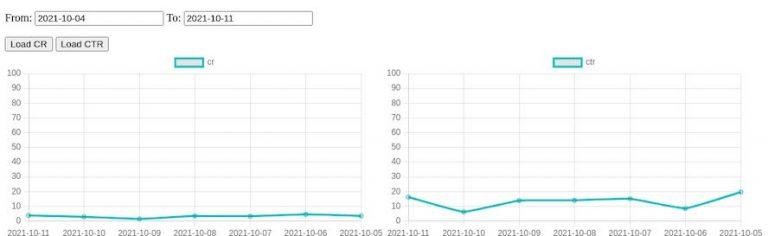
    The project contains a very minimal frontend that uses Chartjs to render two line charts for CR and CTR. I don’t want to go into detail here; just have a look at the index.html file under src/main/resource/static. Once you start the application, point your browser to http://localhost:8080/ and enter from and to dates in the format yyyy-MM-dd. Afterward, you can press one of the buttons to see the chart rendering
    This ends our series on how to develop your own site search analytics that

    1. Is cost-effective
    2. Is highly scalable
    3. Is expandable as it’s self-owned

    However, this is only the beginning. For a proper site search analytics tool that you can use to optimize your business, additional KPIs are required. These can be added easily enough if you have the appropriate data.

    And that’s a crucial, if not the most important, factor!

    Without the RIGHT DATA it’s shit in, shit out!

    No matter how good the underlying architecture is, without correct data, an analysis of the search offers no added value. On the contrary, wrong decisions are made from wrong data, which leads to a direct loss of sales in the worst-case scenario. If you want to minimize the risk of bad data, try tackling E-Commerce search tracking yourself and use an open-source solution such as the Search Collector. But please keep in mind that these solutions only provide the framework for tracking data. If used incorrectly, they cause the same problems as commercial solutions.

    Do Ecommerce Site Search analytics, but do it properly or not at all!

    The final source code can be found on github.

  • How To DIY Site Search Analytics Using Athena – Part 2

    How To DIY Site Search Analytics Using Athena – Part 2

    This article continues the work on our analytics application from Part 1. You will need to read Part 1 to understand the content of this post. “How To DIY Site search analytics — Part 2” will add the following features to our application:

    How-To Site-Search Analytics follow these steps

    1. Upload CSV files containing our E-Commerce KPIs in a way easily readable by humans.
    2. Convert the CSV files into Apache Parquet format for optimal storage and query performance.
    3. Upload Parquet files to AWS S3, optimized for partitioned data in Athena.
    4. Make Athena aware of newly uploaded data.

    CSV upload to begin your DIY for Site Search Analytics

    First, create a new Spring-Service that manages all file operations. Open your favorite IDE where you previously imported the application in part 1 and create a new class called FileService in the package com.example.searchinsightsdemo.service and paste in the following code:

    				
    					@Service
    public class FileService {
        private final Path uploadLocation;
        public FileService(ApplicationProperties properties) {
            this.uploadLocation = Paths.get(properties.getStorageConfiguration().getUploadDir());
        }
        public Path store(MultipartFile file) {
            String filename = StringUtils.cleanPath(file.getOriginalFilename());
            try {
                if (file.isEmpty()) {
                    throw new StorageException("Failed to store empty file " + filename);
                }
                if (filename.contains("..")) {
                    // This is a security check, should practically not happen as
                    // cleanPath is handling that ...
                    throw new StorageException("Cannot store file with relative path outside current directory " + filename);
                }
                try (InputStream inputStream = file.getInputStream()) {
                    Path filePath = this.uploadLocation.resolve(filename);
                    Files.copy(inputStream, filePath, StandardCopyOption.REPLACE_EXISTING);
                    return filePath;
                }
            }
            catch (IOException e) {
                throw new StorageException("Failed to store file " + filename, e);
            }
        }
        public Resource loadAsResource(String filename) {
            try {
                Path file = load(filename);
                Resource resource = new UrlResource(file.toUri());
                if (resource.exists() || resource.isReadable()) {
                    return resource;
                }
                else {
                    throw new StorageFileNotFoundException("Could not read file: " + filename);
                }
            }
            catch (MalformedURLException e) {
                throw new StorageFileNotFoundException("Could not read file: " + filename, e);
            }
        }
        public Path load(String filename) {
            return uploadLocation.resolve(filename);
        }
        public Stream<Path> loadAll() {
            try {
                return Files.walk(this.uploadLocation, 1)
                        .filter(path -> !path.equals(this.uploadLocation))
                        .map(this.uploadLocation::relativize);
            }
            catch (IOException e) {
                throw new StorageException("Failed to read stored files", e);
            }
        }
        public void init() {
            try {
                Files.createDirectories(uploadLocation);
            }
            catch (IOException e) {
                throw new StorageException("Could not initialize storage", e);
            }
        }


    That’s quite a lot of code. Let’s summarize the purpose of each relevant method and how it helps To DIY Site Search Analytics:

    • store: Accepts a MultipartFile passed by a Spring Controller and stores the file content on disk. Always pay extra attention to security vulnerabilities when dealing with file uploads. In this example, we use Spring’s StringUtils.cleanPath to guard against relative paths, to prevent someone from navigating up our file system. In a real-world scenario, this would not be enough. You’ll want to add more checks for proper file extensions and the like.
    • loadAsResource: Returns the content of a previously uploaded file as a Spring Resource.
    • loadAll: Returns the names of all previously uploaded files.

    To not unnecessarily inflate the article, I will refrain from detailing either the configuration of the upload directory or the custom exceptions. As a result, please review the packages com.example.searchinsightsdemo.config, com.example.searchinsightsdemo.service and the small change necessary in the class SearchInsightsDemoApplication to ensure proper setup.

    Now, let’s have a look at the Spring Controller. Using the newly created service, create a Class FileController in the package com.example.searchinsightsdemo.rest and paste in the following code:

    				
    					@RestController
    @RequestMapping("/csv")
    public class FileController {
        private final FileService fileService;
        public FileController(FileService fileService) {
            this.fileService = fileService;
        }
        @PostMapping("/upload")
        public ResponseEntity<String> upload(@RequestParam("file") MultipartFile file) throws Exception {
            Path path = fileService.store(file);
            return ResponseEntity.ok(MvcUriComponentsBuilder.fromMethodName(FileController.class, "serveFile", path.getFileName().toString()).build().toString());
        }
        @GetMapping("/uploads")
        public ResponseEntity<List<String>> listUploadedFiles() throws IOException {
            return ResponseEntity
                    .ok(fileService.loadAll()
                            .map(path -> MvcUriComponentsBuilder.fromMethodName(FileController.class, "serveFile", path.getFileName().toString()).build().toString())
                            .collect(Collectors.toList()));
        }
        @GetMapping("/uploads/{filename:.+}")
        @ResponseBody
        public ResponseEntity<Resource> serveFile(@PathVariable String filename) {
            Resource file = fileService.loadAsResource(filename);
            return ResponseEntity.ok()
                    .header(HttpHeaders.CONTENT_DISPOSITION, "attachment; filename="" + file.getFilename() + """).body(file);
        }
        @ExceptionHandler(StorageFileNotFoundException.class)
        public ResponseEntity<?> handleStorageFileNotFound(StorageFileNotFoundException exc) {
            return ResponseEntity.notFound().build();
        }
    }


    Nothing special. We just provided request mappings to;

    1. Upload a file
    2. List all uploaded files
    3. Serve the content of a file

    This will ensure the appropriate use of the service methods. Time to test the new functionality, start the Spring Boot application and run the following commands against it:

    				
    					# Upload a file:
    curl -s http://localhost:8080/csv/upload -F file=@/path_to_sample_application/sample_data.csv
    # List all uploaded files
    curl -s http://localhost:8080/csv/uploads
    # Serve the content of a file
    curl -s http://localhost:8080/csv/uploads/sample_data.csv


    The sampledata.csv file can be found within the project directory. However, you can also use any other file.

    Convert uploaded CSV files into Apache Parquet

    We will add another endpoint to our application which expects the name of a previously uploaded file that should be converted to Parquet. Please note that AWS also offers services to accomplish this; however, I want to show you how to DIY.

    Go to the FileController and add the following method:

    				
    					@PatchMapping("/convert/{filename:.+}")
        @ResponseBody
        public ResponseEntity<String> csvToParquet(@PathVariable String filename) {
            Path path = fileService.csvToParquet(filename);
            return ResponseEntity.ok(MvcUriComponentsBuilder.fromMethodName(FileController.class, "serveFile", path.getFileName().toString()).build().toString());
        }


    As you might have already spotted, the code refers to a method that does not exist on the FileService. Before adding that logic though, we first need to add some new dependencies to our pom.xml which enable us to create Parquet files and read CSV files:

    				
    					<dependency>
            <groupId>org.apache.parquet</groupId>
            <artifactId>parquet-hadoop</artifactId>
            <version>1.12.0</version>
        </dependency>
        <dependency>
            <groupId>org.apache.hadoop</groupId>
            <artifactId>hadoop-common</artifactId>
            <version>3.3.0</version>
        </dependency>
        <dependency>
            <groupId>org.apache.hadoop</groupId>
            <artifactId>hadoop-core</artifactId>
            <version>1.2.1</version>
        </dependency>
        <dependency>
            <groupId>org.apache.commons</groupId>
            <artifactId>commons-csv</artifactId>
            <version>1.8</version>
        </dependency>


    After updating the maven dependencies, we are ready to implement the missing part(s) of the FileService:

    				
    					public Path csvToParquet(String filename) {
            Resource csvResource = loadAsResource(filename);
            String outputName = getFilenameWithDiffExt(csvResource, ".parquet");
            String rawSchema = getSchema(csvResource);
            Path outputParquetFile = uploadLocation.resolve(outputName);
            if (Files.exists(outputParquetFile)) {
                throw new StorageException("Output file " + outputName + " already exists");
            }
            org.apache.hadoop.fs.Path path = new org.apache.hadoop.fs.Path(outputParquetFile.toUri());
            MessageType schema = MessageTypeParser.parseMessageType(rawSchema);
            try (
                    CSVParser csvParser = CSVFormat.DEFAULT
                            .withFirstRecordAsHeader()
                            .parse(new InputStreamReader(csvResource.getInputStream()));
                    CsvParquetWriter writer = new CsvParquetWriter(path, schema, false);
            ) {
                for (CSVRecord record : csvParser) {
                    List<String> values = new ArrayList<String>();
                    Iterator<String> iterator = record.iterator();
                    while (iterator.hasNext()) {
                        values.add(iterator.next());
                    }
                    writer.write(values);
                }
            }
            catch (IOException e) {
                throw new StorageFileNotFoundException("Could not read file: " + filename);
            }
            return outputParquetFile;
        }
        private String getFilenameWithDiffExt(Resource csvResource, String ext) {
            String outputName = csvResource.getFilename()
                    .substring(0, csvResource.getFilename().length() - ".csv".length()) + ext;
            return outputName;
        }
        private String getSchema(Resource csvResource) {
            try {
                String fileName = getFilenameWithDiffExt(csvResource, ".schema");
                File csvFile = csvResource.getFile();
                File schemaFile = new File(csvFile.getParentFile(), fileName);
                return Files.readString(schemaFile.toPath());
            }
            catch (IOException e) {
                throw new StorageFileNotFoundException("Schema file does not exist for the given csv file, did you forget to upload it?", e);
            }
        }


    That’s again quite a lot of code, and we want to relate it back to How best To DIY Site Search Analytics. So let’s try to understand what’s going on. First, we load the previously uploaded CSV file Resource that we want to convert into Parquet. From the resource name, we derive the name of an Apache Parquet schema file that describes the data types of each column of the CSV file. This results from Parquet’s binary file structure, which allows encoded data types. Based on the definition we provide in the schema file, the code will format the data accordingly before writing it to the Parquet file. More information can be found in the official documentation.

    The schema file of the sample data can be found in the projects root directory:

    				
    					message m { 
        required binary query; 
        required INT64 searches; 
        required INT64 clicks; 
        required INT64 transactions; 
    }


    It contains only two data types:

    1. binary: Used to store the query — maps to String
    2. INT64: Used to store the KPIs of the query — maps to Integer

    The content of the schema file is read into a String from which we can create a MessageType object that our custom CsvParquetWriter, which we will create shortly, needs to write the actual file. The rest of the code is standard CSV parsing using Apache Commons CSV, followed by passing the values of each record to our Parquet writer.

    It’s time to add the last missing pieces before we can create our first Parquet file. Create a new class CsvParquetWriter in the package com.example.searchinsightsdemo.parquet and paste in the following code:

    				
    					...
    import org.apache.hadoop.fs.Path;
    import org.apache.parquet.hadoop.ParquetWriter;
    import org.apache.parquet.hadoop.metadata.CompressionCodecName;
    import org.apache.parquet.schema.MessageType;
    public class CsvParquetWriter extends ParquetWriter<List<String>> {
        public CsvParquetWriter(Path file, MessageType schema) throws IOException {
            this(file, schema, DEFAULT_IS_DICTIONARY_ENABLED);
        }
        public CsvParquetWriter(Path file, MessageType schema, boolean enableDictionary) throws IOException {
            this(file, schema, CompressionCodecName.SNAPPY, enableDictionary);
        }
        public CsvParquetWriter(Path file, MessageType schema, CompressionCodecName codecName, boolean enableDictionary) throws IOException {
            super(file, new CsvWriteSupport(schema), codecName, DEFAULT_BLOCK_SIZE, DEFAULT_PAGE_SIZE, enableDictionary, DEFAULT_IS_VALIDATING_ENABLED);
        }
    }


    Our custom writer extends the ParquetWriter class, which we pulled in with the new maven dependencies. I added some imports to the snippet to visualize it. The custom writer does not need to do much; just call some super constructor classes with mostly default values, except that we use the SNAPPY codec to compress our files for optimal storage and cost reduction on AWS. What’s noticeable, however, is the CsvWriteSupport class that we also need to create ourselves. Create a class CsvWriteSupport in the package com.example.searchinsightsdemo.parquet with the following content:

    				
    					...
    import org.apache.hadoop.conf.Configuration;
    import org.apache.parquet.column.ColumnDescriptor;
    import org.apache.parquet.hadoop.api.WriteSupport;
    import org.apache.parquet.io.ParquetEncodingException;
    import org.apache.parquet.io.api.Binary;
    import org.apache.parquet.io.api.RecordConsumer;
    import org.apache.parquet.schema.MessageType;
    public class CsvWriteSupport extends WriteSupport<List<String>> {
        MessageType             schema;
        RecordConsumer          recordConsumer;
        List<ColumnDescriptor>  cols;
        // TODO: support specifying encodings and compression
        public CsvWriteSupport(MessageType schema) {
            this.schema = schema;
            this.cols = schema.getColumns();
        }
        @Override
        public WriteContext init(Configuration config) {
            return new WriteContext(schema, new HashMap<String, String>());
        }
        @Override
        public void prepareForWrite(RecordConsumer r) {
            recordConsumer = r;
        }
        @Override
        public void write(List<String> values) {
            if (values.size() != cols.size()) {
                throw new ParquetEncodingException("Invalid input data. Expecting " +
                        cols.size() + " columns. Input had " + values.size() + " columns (" + cols + ") : " + values);
            }
            recordConsumer.startMessage();
            for (int i = 0; i < cols.size(); ++i) {
                String val = values.get(i);
                if (val.length() > 0) {
                    recordConsumer.startField(cols.get(i).getPath()[0], i);
                    switch (cols.get(i).getType()) {
                        case INT64:
                            recordConsumer.addInteger(Integer.parseInt(val));
                            break;
                        case BINARY:
                            recordConsumer.addBinary(stringToBinary(val));
                            break;
                        default:
                            throw new ParquetEncodingException(
                                    "Unsupported column type: " + cols.get(i).getType());
                    }
                    recordConsumer.endField(cols.get(i).getPath()[0], i);
                }
            }
            recordConsumer.endMessage();
        }
        private Binary stringToBinary(Object value) {
            return Binary.fromString(value.toString());
        }
    }


    Here we extend WriteSupport where we need to override some more methods. The interesting part is the write method, where we need to convert the String values, read from our CSV parser, into the proper data types defined in our schema file. Please note that you may need to extend the switch statement should you require more data types than in the example schema file.

    Turning on the Box

    Testing time, start the application and run the following commands:

    				
    					# Upload the schema file of the example data
    curl -s http://localhost:8080/csv/upload -F file=@/path_to_sample_application/sample_data.schema
    # Convert the CSV file to Parquet
    curl -s -XPATCH http://localhost:8080/csv/convert/sample_data.csv


    If everything worked correctly, you should find the converted file in the upload directory:

    				
    					[user@user search-insights-demo (⎈ |QA:ui)]$ ll /tmp/upload/
    insgesamt 16K
    drwxr-xr-x  2 user  user   120  4. Mai 10:34 .
    drwxrwxrwt 58 root  root  1,8K  4. Mai 10:34 ..
    -rw-r--r--  1 user  user   114  3. Mai 15:44 sample_data.csv
    -rw-r--r--  1 user  user   902  4. Mai 10:34 sample_data.parquet
    -rw-r--r--  1 user  user    16  4. Mai 10:34 .sample_data.parquet.crc
    -rw-r--r--  1 user  user   134  4. Mai 10:31 sample_data.schema


    You might be wondering why the .parquet file size is greater than the .csv file. As I said, we are optimizing the storage size as well. The answer is pretty simple. Our CSV file contains very little data, and since Parquet stores the data types and additional metadata in the binary file, we don’t gain the benefit of compression. However, your CSV file will have more data, so things will look different. The raw CSV data of a single day from a real-world scenario is 11.9 MB whereas the converted Parquet file only weights 1.4 MB! That’s a reduction of 88% which is pretty impressive.

    Upload the Parquet files to S3

    Now that we have the parquet files locally, it’s time to upload them to AWS S3. We already created our Athena database, in part one, where we enabled partitioning by a key called dt:

    				
    					...
    PARTITIONED BY (dt string)
    STORED AS PARQUET
    LOCATION 's3://search-insights-demo/'


    this means we need to upload the files into the following bucket structure:

    				
    					├── search-insights-demo
    │   └── dt=2021-05-04/
    │       └── analytics.parquet


    Each parquet file needs to be placed in a bucket with the prefix dt= followed by the date relative to the corresponding KPIs. The name of the parquet file does not matter as long as its extension is .parquet.

    It’s Hack Time

    So let’s start coding. Add the following method to the FileController:

    				
    					@PatchMapping("/s3/{filename:.+}")
        @ResponseBody
        public URL uploadToS3(@PathVariable String filename) {
            return fileService.uploadToS3(filename);
        }


    and to the FileService respectively:

    				
    					public URL uploadToS3(String filename) {
            Resource parquetFile = loadAsResource(filename);
            if (!parquetFile.getFilename().endsWith(".parquet")) {
                throw new StorageException("You must upload parquet files to S3!");
            }
            try {
                AmazonS3 s3 = AmazonS3ClientBuilder.standard().build();
                File file = parquetFile.getFile();
                long lastModified = file.lastModified();
                LocalDate partitionDate = Instant.ofEpochMilli(lastModified)
                        .atZone(ZoneId.systemDefault())
                        .toLocalDate();
                String bucket = String.format("search-insights-demo/dt=%s", partitionDate.toString());
                s3.putObject(bucket, "analytics.parquet", file);
                return s3.getUrl(bucket, "analytics.parquet");
            }
            catch (SdkClientException | IOException e) {
                throw new StorageException("Failed to upload file to s3", e);
            }
        }


    The code won’t compile before adding another dependency to our pom.xml:

    				
    					<dependency>
        <groupId>com.amazonaws</groupId>
        <artifactId>aws-java-sdk-s3</artifactId>
        <version>1.11.1009</version>
    </dependency>


    Please don’t forget that you need to change the base bucket search-insights-demo to the one you used when creating the database!

    Testing time:

    				
    					# Upload the parquet file to S3
    curl -s -XPATCH http://localhost:8080/csv/s3/sample_data.parquet


    The result should be the S3 URL where you can find the uploaded file.

    Make Athena aware of newly uploaded data

    AWS Athena does not constantly scan your base bucket for newly uploaded files. So if you’re attempting to DIY Site Search Analytics, you’ll need to execute an SQL statement that triggers the rebuild of the partitions. Let’s go ahead and add the necessary small changes to the FileService:

    				
    					...
    private static final String QUERY_REPAIR_TABLE = "MSCK REPAIR TABLE " + ANALYTICS.getName();
        private final Path          uploadLocation;
        private final DSLContext    context;
        public FileService(ApplicationProperties properties, DSLContext context) {
            this.uploadLocation = Paths.get(properties.getStorageConfiguration().getUploadDir());
            this.context = context;
        }
    ...
    				
    			
    1. First, we add a constant repair table SQL snippet that uses the table name provided by JOOQ’s code generation.
    2. Secondly, we autowire the DSLContext provided by Spring into our service.
    3. For the final step, we need to add the following lines to the public URL uploadToS3(String filename) method, right before the return statement:
    				
    					...
    context.execute(QUERY_REPAIR_TABLE);


    That’s it! With these changes in place, we can test the final version of part 2

    				
    					curl -s -XPATCH http://localhost:8080/csv/s3/sample_data.parquet
    # This time, not only was the file uploaded, but the content should also be visible for our queries. So let's get the count of our database
    curl -s localhost:8080/insights/coun`


    The response should match our expected value 3 — which matches the number of rows in our CSV file — and you should be able to see the following log message in your console:

    				
    					Executing query          : select count(*) from "ANALYTICS"
    Fetched result           : +-----+
                             : |count|
                             : +-----+
                             : |    3|
                             : +-----+                                                                  
    Fetched row(s)           : 1   


    Summary

    In part two of this series, we showed how to save storage costs and gain query performance by creating Apache Parquet files from plain old CSV files. Those files play nicely with AWS Athena, especially when you further partition them by date. E-Commerce KPIs can be partitioned precisely by a single day. After all, the most exciting queries span a range, e.g., show me the top queries of the last X days, weeks, months. This is the exact functionality we will add in the next part, where we extend our AthenaQueryServiceby some meaningful queries. Stay tuned and join us soon for part three of this series, coming soon!

    By the way: The source code for part two can be found on GitHub.

  • How To DIY Site search analytics – made easy

    How To DIY Site search analytics – made easy

    In my first post, I talked about the importance of site search analytics for e-commerce optimization. In this follow-up, I would like to show one way how to easily build a site search analytics system at scale, without spending much time and effort on answering these ever present questions:

    1. Which database is best for analytics?
    2. How do I operate that database at scale?
    3. What are the operating costs for the database?

    How-To Site-Search Analytics without the Headache

    These questions are important and necessary. Thankfully, in the age of cloud computing, others have already thought about, and found solutions to abstract out the complexity. One of them is Amazon Athena. This will help us build a powerful analysis tool from, in the simplest case, things like CSV files. Amazon Athena, explained in its own words:

    Athena is an interactive query service that makes it easy to analyze data in Amazon S3 using standard SQL. Athena is serverless, so there is no infrastructure to manage, and you pay only for the queries that you run. Amazon Athena

    This introductory sentence from the Amazon website already answers our questions 1 and 2. All that remains is to answer question 3: how much does it cost? This is answered quickly enough:

    • $5.00 per TB of data scanned by Athena
    • Standard AWS S3 rates for storage, requests, and data transfer


    AWS offers a calculator to roughly estimate the cost. Because Amazon Athena uses Presto under the hood, it works with a variety of data formats. This includes CSV, JSON, ORC, Apache Parquet, and Apache Avro. Choosing the right file format can save you up to a third of the cost.

    No data, no DIY analytics

    A site search analytics tool requires a foundation. Either data from an e-commerce system or any site search tracking tool like the searchhub search-collector will suffice. For now, we will focus on how to convert data into the best possible format, and leave the question of “how to extract data from the various systems” for a separate post.

    As the database needn’t scan a complete row but only the columns which are referenced in the SQL query, a columnar data format is preferred to achieve optimal read performance. And to reduce overall size, the file format should also support data compression algorithms. In the case of Athena, this means we can choose between ORC, Apache Parquet, and Apache Avro. The company bryteflow provides a good comparison of these three formats here. These file formats are efficient and intelligent. Nevertheless, they lack the ability to easily inspect the data in a humanly readable way. For this reason, consider adding an intermediate file format to your ETL pipeline. Use this file to store the original data in an easy-to-read format like CSV or JSON. This will make your life easier when debugging any strange-looking query results.

    What are we going to build?

    We’ll now build a minimal Spring Boot web application that is capable of the following:

    1. Creating dummy data in a humanly readable way
    2. Converting that data into Apache Parquet
    3. Uploading the Parquet files to AWS S3
    4. Query the data from AWS Athena using JOOQ for creating type-safe SQL queries using the Athena JDBC driver.

    Creating the application skeleton

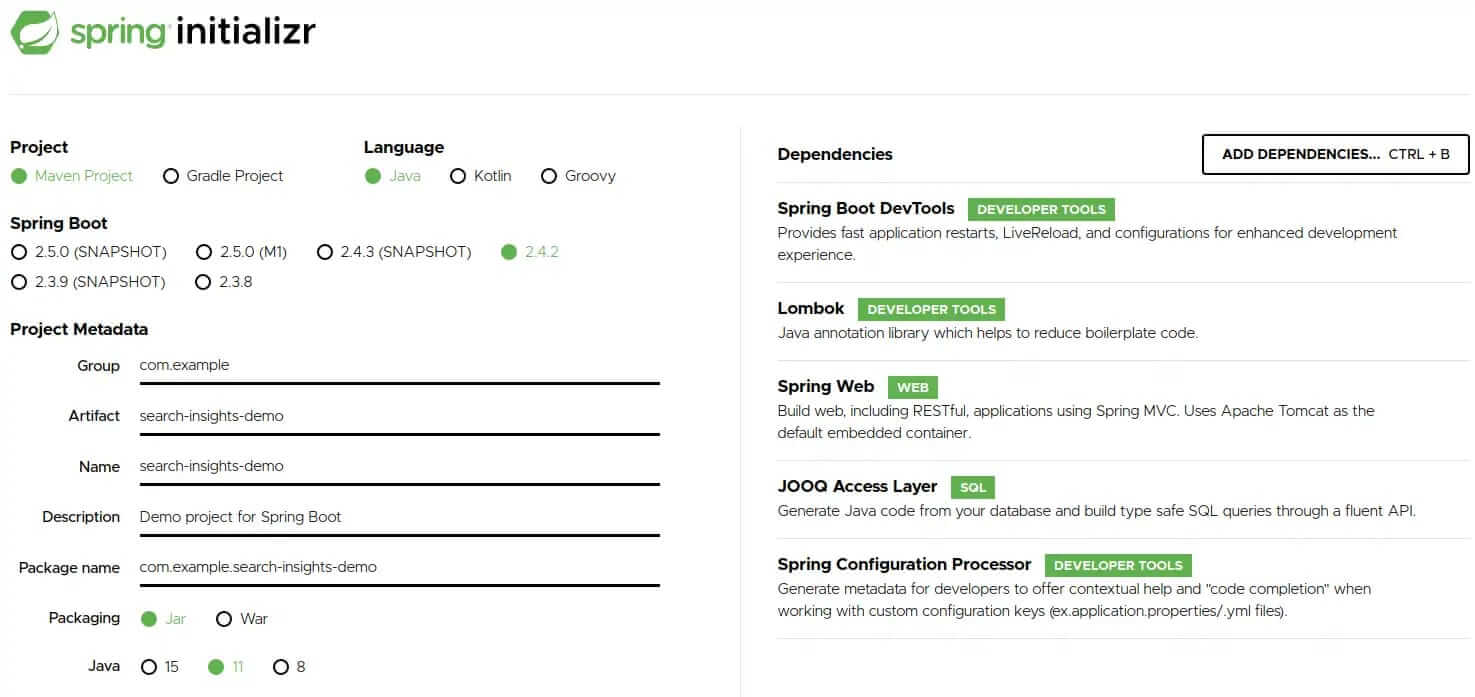
    Head over to Spring initializr and generate a new application with the following dependencies:

    • Spring Boot DevTools
    • Lombok
    • Spring Web
    • JOOQ Access Layer
    • Spring Configuration Processor

    Hit the generate button to download the project. Afterward, you need to extract the zip file and import the maven project into your favorite IDE.

    Our minimal database table will have the following columns:

    1. query
    2. searches
    3. clicks
    4. transactions


    We will use the jooq-codegen-maven plugin, to build type-safe queries with JOOQ, which will generate the necessary code for us. The plugin can be configured to generate code based on SQL DDL commands. Create a file called jooq.sql inside src/main/resources/db and add the following content to it:

    				
    					CREATE TABLE analytics (
        query VARCHAR,
        searches INT ,
        clicks INT,
        transactions INT,
        dt VARCHAR
    );


    Next, add the plugin to the existing build/plugins section of our projects pom.xml:

    				
    					<plugin>
        <groupId>org.jooq</groupId>
        <artifactId>jooq-codegen-maven</artifactId>
        <executions>
            <execution>
                <id>generate-jooq-sources</id>
                <phase>generate-sources</phase>
                <goals>
                    <goal>generate</goal>
                </goals>
                <configuration>
                    <generator>
                        <generate>
                            <pojos>true</pojos>
                            <pojosEqualsAndHashCode>true</pojosEqualsAndHashCode>
                            <javaTimeTypes>true</javaTimeTypes>
                        </generate>
                        <database>
                            <name>org.jooq.meta.extensions.ddl.DDLDatabase</name>
                            <inputCatalog></inputCatalog>
                            <inputSchema>PUBLIC</inputSchema>
                            <outputSchemaToDefault>true</outputSchemaToDefault>
                            <outputCatalogToDefault>true</outputCatalogToDefault>
                            <properties>
                                <property>
                                    <key>sort</key>
                                    <value>semantic</value>
                                </property>
                                <property>
                                    <key>scripts</key>
                                    <value>src/main/resources/db/jooq.sql</value>
                                </property>
                            </properties>
                        </database>
                        <target>
                            <clean>true</clean>
                            <packageName>com.example.searchinsightsdemo.db</packageName>
                            <directory>target/generated-sources/jooq</directory>
                        </target>
                    </generator>
                </configuration>
            </execution>
        </executions>
        <dependencies>
            <dependency>
                <groupId>org.jooq</groupId>
                <artifactId>jooq-meta-extensions</artifactId>
                <version>${jooq.version}</version>
            </dependency>
        </dependencies>
    </plugin>


    The IDE may require the maven project to be updated before it can be recompiled. Once done, you should be able to see the generated code under target/generated-sources/jooq.

    Before creating SQL queries with JOOQ, we first need to create a DSL-context using an SQL connection to AWS Athena. This assumes we have a corresponding Athena JDBC driver on our classpath. Unfortunately, maven central provides only an older version (2.0.2) of the driver, which isn’t an issue for our demo. For production, however, you should use the most recent version from the AWS website. Once finished, publish it to your maven repository. Or add it as an external library to your project, if you don’t have a repository. Now, we need to add the following dependency to our pom.xml:

    				
    					<dependency>
        <groupId>com.syncron.amazonaws</groupId>
        <artifactId>simba-athena-jdbc-driver</artifactId>
        <version>2.0.2</version>
    </dependency>


    Under src/main/resources rename the file application.properties to application.yml and paste the following content into it:

    				
    					spring:
      datasource:
        url: jdbc:awsathena://<REGION>.amazonaws.com:443;S3OutputLocation=s3://athena-demo-qr;Schema=demo
        username: ${ATHENA_USER}
        password: ${ATHENA_SECRET}
        driver-class-name: com.simba.athena.jdbc.Driver


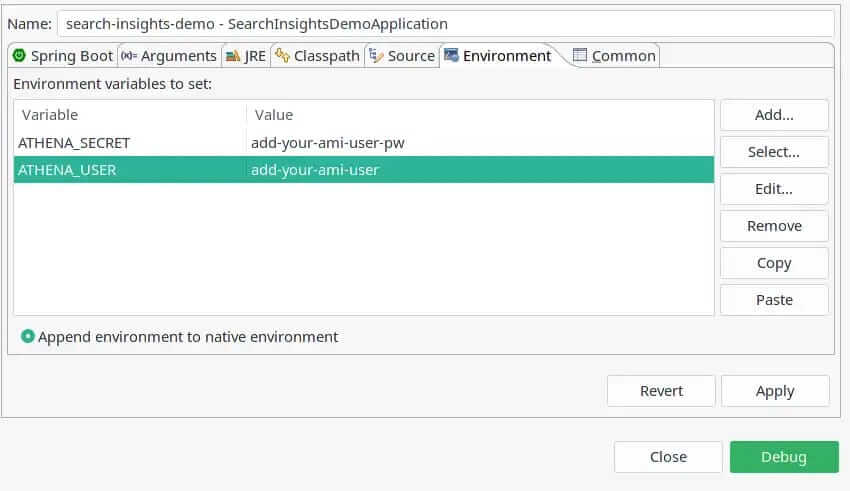
    This will auto-configure a JDC connection to Athena and Spring will provide us a DSLContext bean which we can auto-wire into our service class. Please note that I assume you have an AWS IAM user that has access to S3 and Athena. Do not store sensitive credentials in the configuration file, rather pass them as environment variables to your application. You can easily do this, if working with Spring Toll Suite. Simply select the demo application from the Boot Dashboard; then the pen icon to open the launch configuration; navigate to the Environment tab and add the following entries:

    Please note the datasource URL property, where you need to add proper values for the following placeholders directly in your properties.yml:

    1. REGION: The region you created your Athena database in. We will cover this step shortly.
    2. S3OutputLocation: The bucket where Athena will store query results.
    3. Schema: The name of the Athena database we are going to create shortly.


    We are about to load our Spring Boot application. Our Athena database is still missing, however. And the application won’t start without it.

    Creating the Athena database

    Login to the AWS console and navigate to the S3 service. Hit the Create bucket button and choose a name for it. You won’t be able to use the same bucket as in this tutorial because S3 bucket names must be unique. However, the concept should be clear. For this tutorial, we will use the name, search-insights-demo and skip any further configuration. This is the location to where we will, later, upload our analytics files. Press Create bucket, and navigate over to the Athena service.

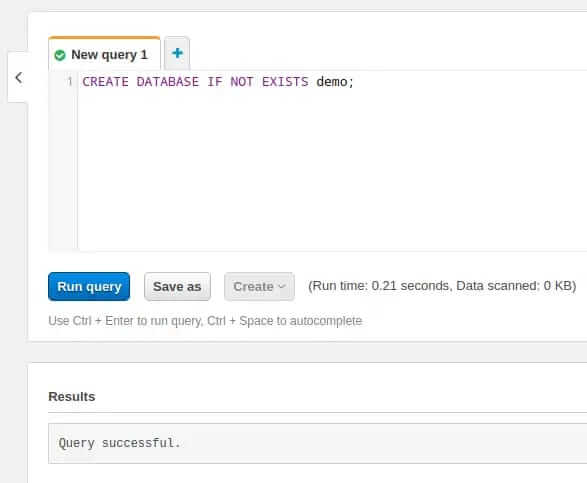
    Paste the following SQL command into the New query 1 tab:

    CREATE DATABASE IF NOT EXISTS demo;

    Hit Run query. The result should look similar to this:

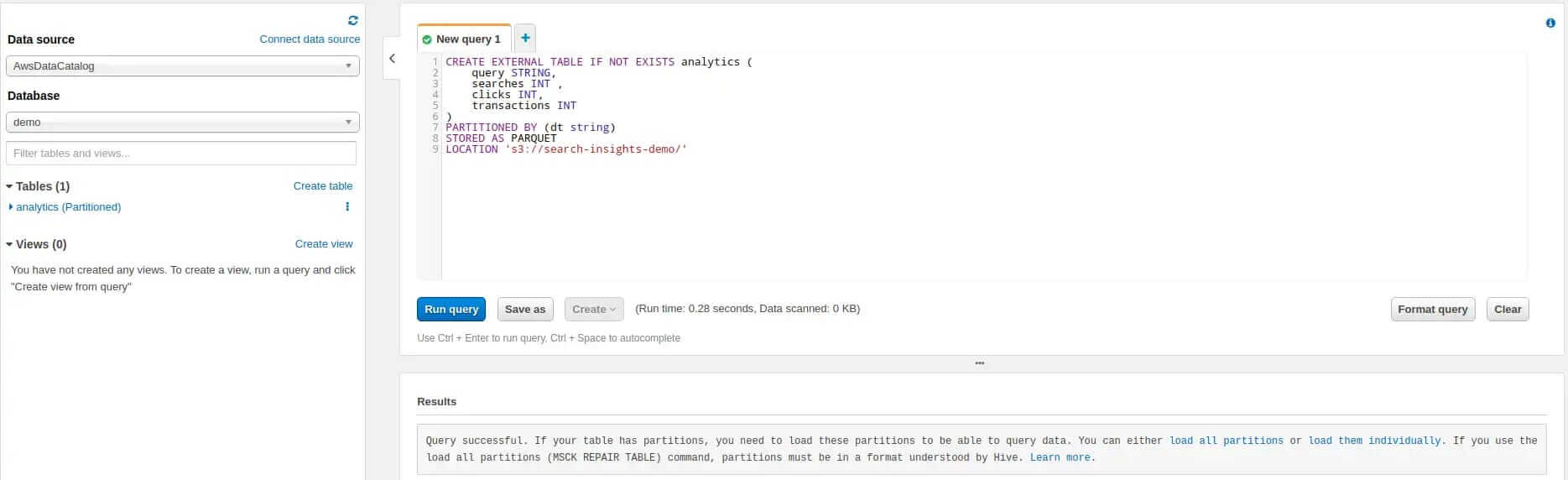
    Now, that we have successfully created a database open the Database drop-down on the left-hand side and select it. Next we create a table by running the following query:

    				
    					CREATE EXTERNAL TABLE IF NOT EXISTS analytics (
        query STRING,
        searches INT ,
        clicks INT,
        transactions INT
    )
    PARTITIONED BY (dt string)
    STORED AS PARQUET
    LOCATION 's3://search-insights-demo/'


    The result should look similar to this:

    Please note some important details here:

    1. We partition our table by a string called dt. By partitioning, we can restrict the amount of data scanned by each query. This improves performance and reduces cost. Analytics data can be partitioned perfectly into daily slices.
    2. We state that our stored files are in Apache Parquet format.
    3. We point the table to the previously created S3 bucket. Please adjust the name to the one you have chosen. Important: the location must end with a slash otherwise you will face an IllegalArgumentException.

    Adding the first query to our application

    Now, that everything is setup we can add a REST controller to our application that counts all records in our table. Naturally, the result we expect is 0 as we have yet to upload any data. But this is enough to prove that everything is working.

    Now, return to the IDE and, in the package com.example.searchinsightsdemo.service, create a new class called AthenaQueryService and paste the following code into it:

    				
    					package com.example.searchinsightsdemo.service;
    import static com.example.searchinsightsdemo.db.tables.Analytics.ANALYTICS;
    import org.jooq.DSLContext;
    import org.springframework.beans.factory.annotation.Autowired;
    import org.springframework.stereotype.Service;
    @Service
    public class AthenaQueryService {
        @Autowired
        private DSLContext context;
        public int getCount() {
            return context.fetchCount(ANALYTICS);
        }
    }


    Note that we auto-wire the DSLContext which Spring Boot has already auto-configured based on our settings in the properties.yml. The service contains one single method that uses the context to execute a fetch count query on the ANALYTICS table, which the JOOQ code generator has already created (see the static import).

    A Spring service is nothing without a controller exposing it to the outside world, so let’s create a new class, in the package com.example.searchinsightsdemo.rest, called AthenaQueryController. Go there now and add the following:

    				
    					@RestController
    @RequestMapping("/insights")
    public class AthenaQueryController {
        @Autowired
        private AthenaQueryService queryService;
        @GetMapping("/count")
        public ResponseEntity<Integer> getCount() {
            return ResponseEntity.ok(queryService.getCount());
        }
    }


    Nothing special here. Just some Spring magic that exposes the REST endpoint /insights/count. This in turn calls our service method and returns the results as a ResponseEntity.

    We need to add one more configuration block to the properties.yml, before launching the application for the first time:

    				
    					logging:
      level:
        org.jooq: DEBUG


    This will enable debug logging for JOOQ which enables viewing the SQL queries it generates as plain text in our IDE’s console.

    That was quite a piece of work. Fingers crossed that the application boots. Give it a try by selecting it in the Boot Dashboard and pressing the run button. If everything works as expected you should be able to curl the REST endpoint via:

    curl -s localhost:8080/insights/count

    The response should match the expected value of 0, and you should be able to see the following log message in your console:

    				
    					Executing query          : select count(*) from "ANALYTICS"
    Fetched result           : +-----+
                             : |count|
                             : +-----+
                             : |    0|
                             : +-----+                                                                  
    Fetched row(s)           : 1   


    Summary

    In this first part of our series, we introduced AWS Athena as a cost-effective way of creating an analytics application. We illustrated how to build this yourself by using a Spring Boot web application and JOOQ for type-safe SQL queries. The application hasn’t any analytics capabilities so far. This will be added in part two where we create fake data for the database. To achieve this, we will first show how to create Apache Parquet files; partition them by date, and upload them via AWS S3 Java SDK. Once uploaded, we will look at how to inform Athena about new data.

    Stay tuned and come back soon!

    The source code for part one can be found on GitHub.

  • Use Site Search to Optimize Your Customer Journey

    Use Site Search to Optimize Your Customer Journey

    Largely, it remains, the neglected stepchild of e-commerce optimization. Site-search optimization has the potential to catapult your customer journey strategy to a new level. The success of an E-commerce shop is tightly coupled with the quality of its site search. Customers cannot physically enter the store and look around. Instead, they interact with the shop’s search. Whether via the navigation, if they haven’t a clear idea of what to buy, or via a search query, if they have something specific in mind. Google states that 64% of people in the midst of an, “I want to buy moment”, use search. 71% of these actually visit a retailer’s website. And from all purchases on retailers’ websites, 39% were influenced by a relevant search.

    How-To leverage site-search to Optimize your Customer Journey

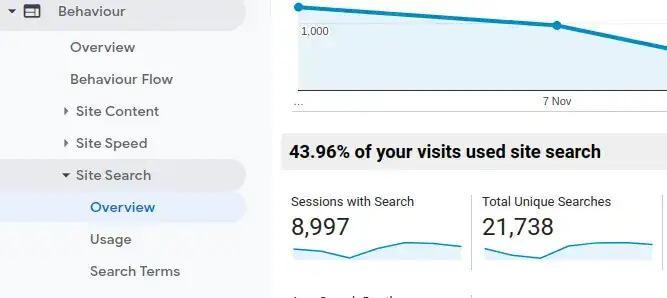
    Of course, search volumes of an online shop do not come close to those of the Google search, but you can learn a lot about visitor search behavior from this analysis. In fact, if you are using Google Analytics, and you haven’t already, you can check it out yourself by navigating to Behavior> Behavior Flow> Site Search> Overview

    Site-Search Analytics of a searchHub customer

    Site Search Reveals Your Customer Journey

    These figures, impressively, show how important a well-functioning search is. What do you think the worst thing is that can happen to a retailer? A customer, who is willing to buy, cannot find what he’s looking for. And this happens, every day, even though the shop has products in the range that match the search. The problem often goes deeper than merely one missed transaction. In fact, not finding what they are looking for can be the very thing that causes him to jump to a competitor and never come back. According to research done by Algolia, 12% of customers will go to a competitor’s site if they are dissatisfied with the search result.

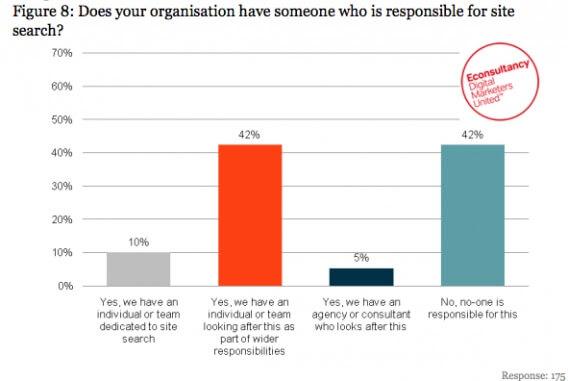
    • Do you know how many shop visitors have had bad experiences with your search?
    • Do you have a dedicated resource responsible for optimizing your site search?

    Chances are… you don’t.

    Econsultancy report on Site Search Administration

    You may think e-commerce has progressed beyond this statistic, however, around 42% of online shops still neglect site search completely. For another 42%, it’s just a side topic. The bottom line: start focussing on it! It’s easy to get started. Almost every search provider on the market offers built-in analytics, some more, some less. If your solution includes analytics, please use it! Your site-search analytics will help you determine next actions and improve the shopping experience of your customers. They will be thankful and buy from you again the next time. This point is driven home most recently in the book marketing metrics, by Bendle, Ferris, Pfeifer, and Rebstein. In it they speak to the importance of getting the customer journey right:

    The probability of selling to an existing customer measures between 60-70%, whereas the probability of selling to a new customer is only 5-20%. Bendle, N. Marketing Metrics – 2016

    Humans are creatures of habit. If a shopping experience is positive, meaning: the search quickly found relevant results, the product(s) arrive quickly, and in good quality, there is no reason why you should not purchase again in the future. You see, search, plays an integral role in the complete service a shop offers. Unfortunately, in the majority of cases, the customer journey will start – and sadly sometimes end – with a search!

    Optimize Search, Capitalize on Customer Lifetime Value

    If you are not completely convinced yet, ask a trusted source to begin optimizing your current conditions. After all, costs for a one-time site-search optimization are considerably lower compared to the expensive customer acquisition marketing campaigns. Not only that, this kind of customer search journey optimization is more sustainable than a marketing campaign.

    Bain and Company underpin this with the following figures:

    Acquiring new customers is 5-25x more expensive than retaining existing customers.

    and

    Company profits increase by 75% by increasing customer retention by 5%

    Understanding these kinds of business cases has the potential to be quite compelling to a CFO on the fence, about whether to invest in site-search optimization. The main reason companies fail to optimize site-search is due to lack of budget. In 2019 companies claimed, in 42.7% cases, that there was no budget for e-commerce search. Furthermore, in 38.8% of cases, there was no budget for employees to manage the search.

    Why Site-Search is Still a Neglected Stepchild

    These figures align perfectly with those of the somewhat antiquated Econsultancy report and reveal a fundamental problem: Businesses are yet unaware of the dire significance, and subsequent consequence, of an optimally tuned site-search. As a result, the ultimate impact it has on cost savings and increased profits are blind to them as well!

    I’ll end this post with one last quote from Gartner Group

    80% of your company’s future revenue will come from just 20% of your existing customers. – Gartner Group

    Watch this space to learn more about what we are doing, on a practical level, to make your site-search analytics more profitable and transparent than anything you’ve seen to date. #searchHub #searchCollector

    Let’s go out and Make Search great again!